6.1. PPM Calendar
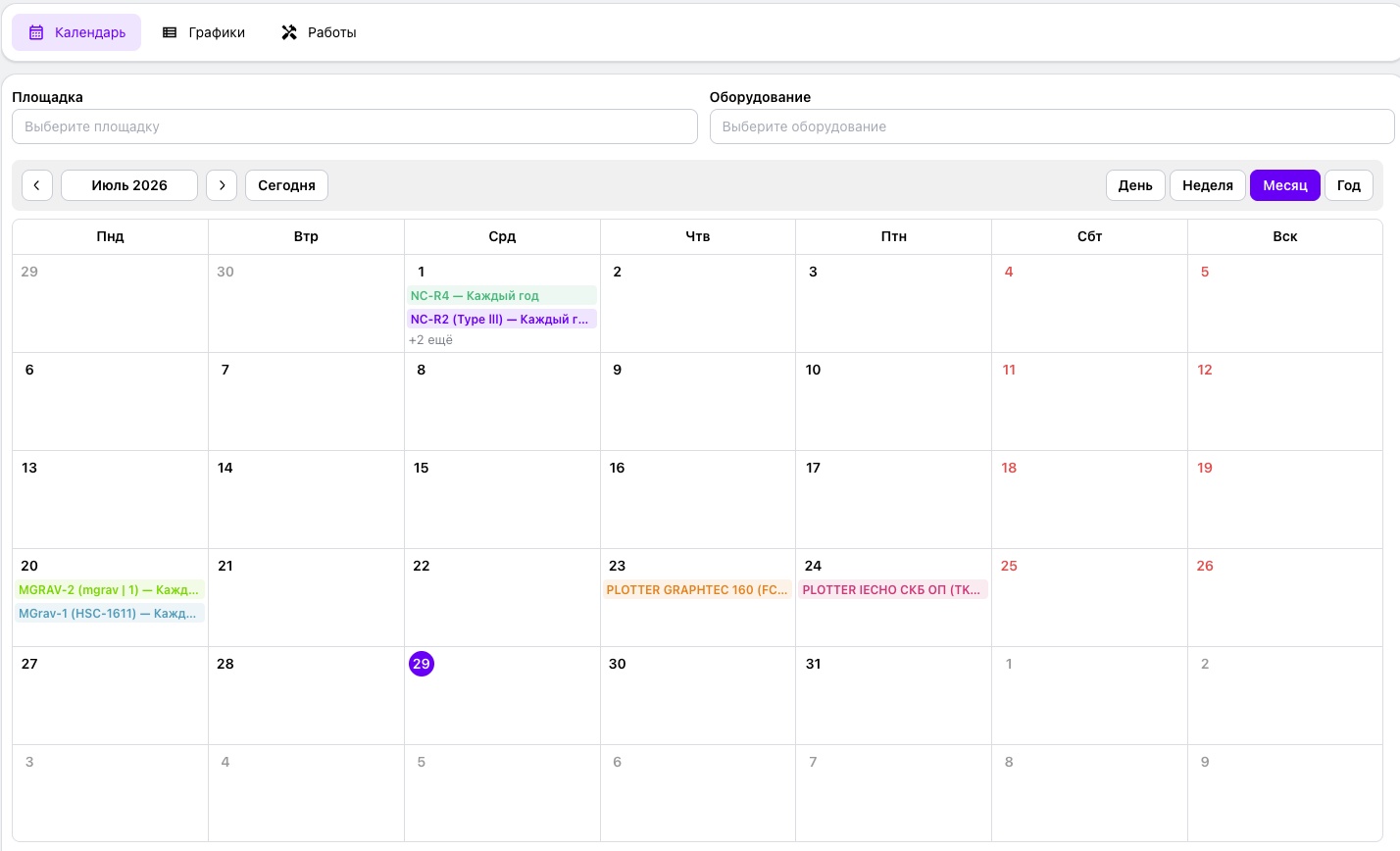
The “Calendar” tab is the primary tab in the “PPM” section. It provides visual planning and monitoring of prescribed maintenance tasks across all company equipment.
By default, it displays the current month's calendar with all scheduled and completed tasks. Each entry represents a separate PPM task and contains a summary of the planned work.
6.1.1. Task Display
If more than two tasks are scheduled for one date, the calendar displays the first entries and an icon for expanding the list. Clicking the icon reveals all tasks scheduled for that day. The current date is highlighted automatically.
6.1.2. Filtering
Two filters are located above the calendar:
- Production site — displays tasks for the selected site only;
- Equipment — displays the maintenance calendar for a specific asset.
The filters can be used independently or together.
6.1.3. View Modes
- Day — a detailed view of tasks on the selected date.
- Week — the maintenance plan for the coming week.
- Month — the standard view used by default.
- Year — an overview of all scheduled tasks for long-term planning and analysis of seasonal workload.
Switching views does not clear the applied filters.
6.1.4. Working with PPM Entries
Every calendar entry is interactive. Clicking an entry opens the scheduled task card, where users can review maintenance parameters, change the completion date, edit the list of prescribed operations, change the maintenance frequency, and make other schedule changes.