7.1. Item Cards
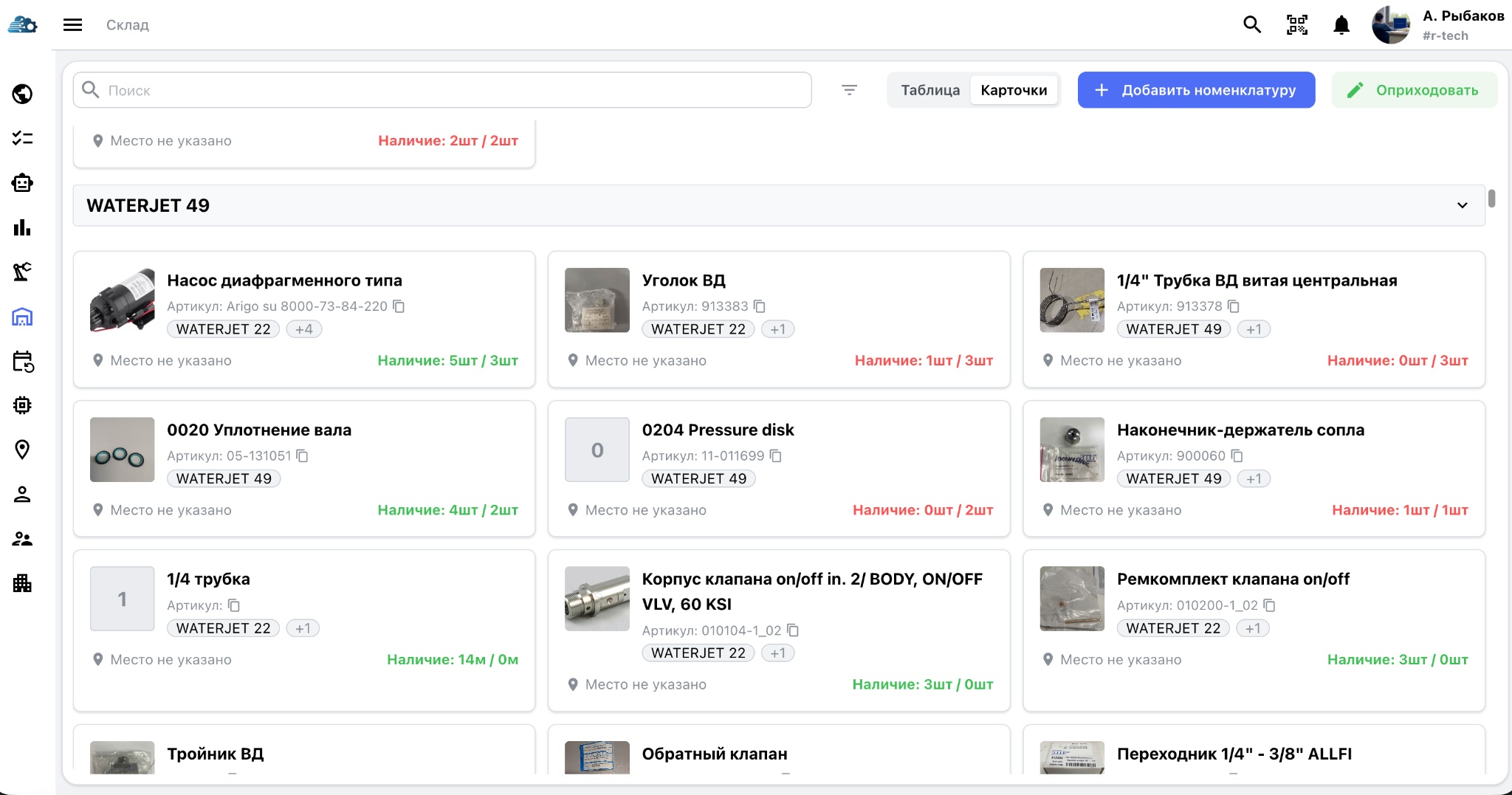
Each card displays a photograph of the spare part, its name, the manufacturer's part number, compatible equipment, storage location, current quantity in stock, and recommended minimum stock level.
Stock levels are color-coded:
- green — stock is above the minimum level;
- red — stock has reached or fallen below the minimum level and must be replenished.
7.1.1. Search
The real-time search covers the item name, part number, and the equipment for which the part is intended.
7.1.2. Grouping by Equipment
Inventory items are grouped by equipment automatically. This allows users to open the spare parts list for a particular machine and see only the relevant items. The same part can belong to several assets at once without creating duplicate cards.
7.1.3. Adding an inventory item
To register a new spare part or consumable, select Add inventory item and enter:
- the item name;
- the manufacturer's or internal part number;
- a barcode, entered manually or scanned;
- a photograph for visual identification;
- one or more compatible equipment items;
- the minimum stock level;
- the unit of measure, such as pieces, metres, kilograms, litres, or packs;
- the storage zone, rack, level, and bin;
- additional information, such as supplier details, substitutes, usage notes, or storage recommendations.
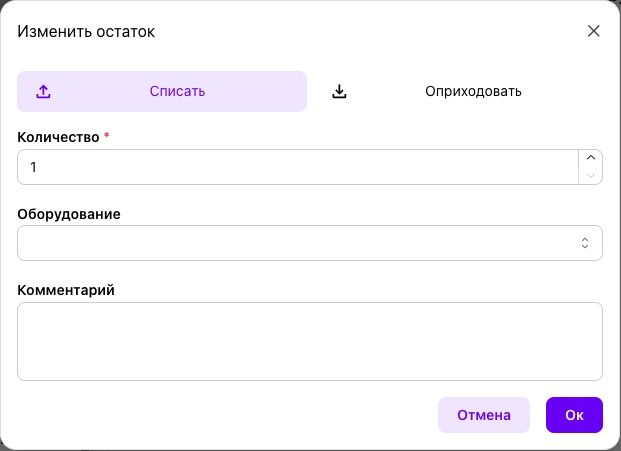
When actual stock falls below the minimum, the item is highlighted in red. A single item card can be linked to several machines without duplicating data.