2.2. Installing the PWA
Installation in Google Chrome or Microsoft Edge
- Open the ServiceBack platform at the address provided by your administrator.
- Sign in to the system.
- In the browser address bar, click the “Install app” icon (a monitor with an arrow), or open the browser menu (⋮) and select “Install ServiceBack” or “Install app.”

- Click “Install” in the confirmation window.
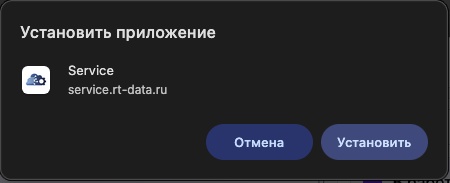
Once installation is complete, the application opens automatically in a separate window.
Installation on iPhone (iOS, Safari)
ServiceBack can be installed as a PWA on a mobile device and launched from the Home Screen.
- Open the ServiceBack address provided by your administrator in Safari.
- Tap Share. If necessary, open More first, then select Add to Home Screen.
- If the Open as Web App switch is displayed, leave it enabled. Check the ServiceBack name and tap Add.
- Open ServiceBack from the Home Screen and sign in if required.

The illustration shows an English-language iOS example using a third-party website; source: Apple/WebKit materials.
Installation on Android (Google Chrome)
- Open the ServiceBack address provided by your administrator in Chrome.
- Open the ⋮ menu to the right of the address bar and select Install and create shortcut → Install. Depending on the browser version, the option may be called Add to Home screen or Install app.
- Confirm the installation by following the on-screen prompts.
- Launch ServiceBack from the new app icon and sign in if required.
note
Menu names and button locations may vary by operating system and browser version.