4.2. General Information
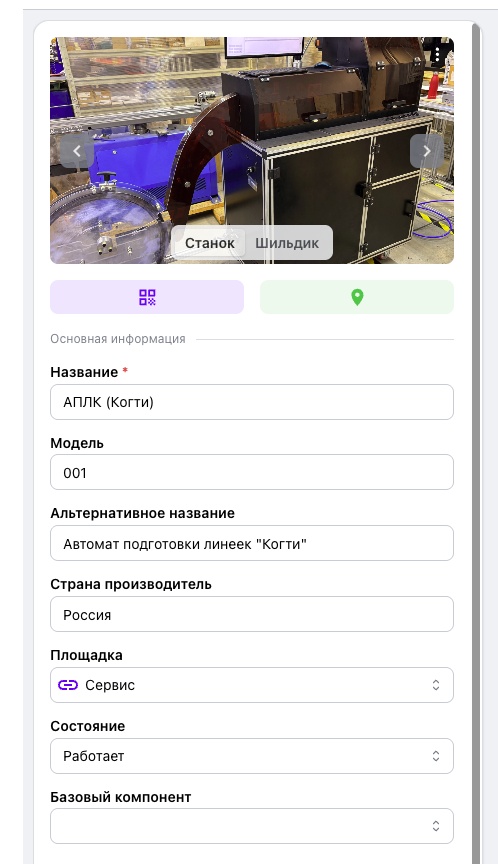
The “General Information” tab stores key equipment details used for identification and operating parameter configuration.
An equipment photograph appears at the top of the card. When necessary, users can switch to a photograph of the manufacturer's nameplate, which contains the serial number, model, and other technical specifications.
The tab contains the following fields:
- Name — the primary name displayed throughout the platform;
- Model — the model or type specified by the manufacturer;
- Alternative name — a designation used in accounting, an ERP system, or internal documents;
- Country of manufacture — the country in which the equipment was produced;
- Production site — the current operating location; the equipment can be moved to another site;
- Condition — for example, “Running,” “Stopped,” or “Idle”;
- Parent component — the primary equipment unit of which the current asset is a part.
The “Parent component” field links the equipment to another asset when it is part of that asset. Each asset remains an independent record with its own repair history, documentation, PPM, and analytics.
Specifications
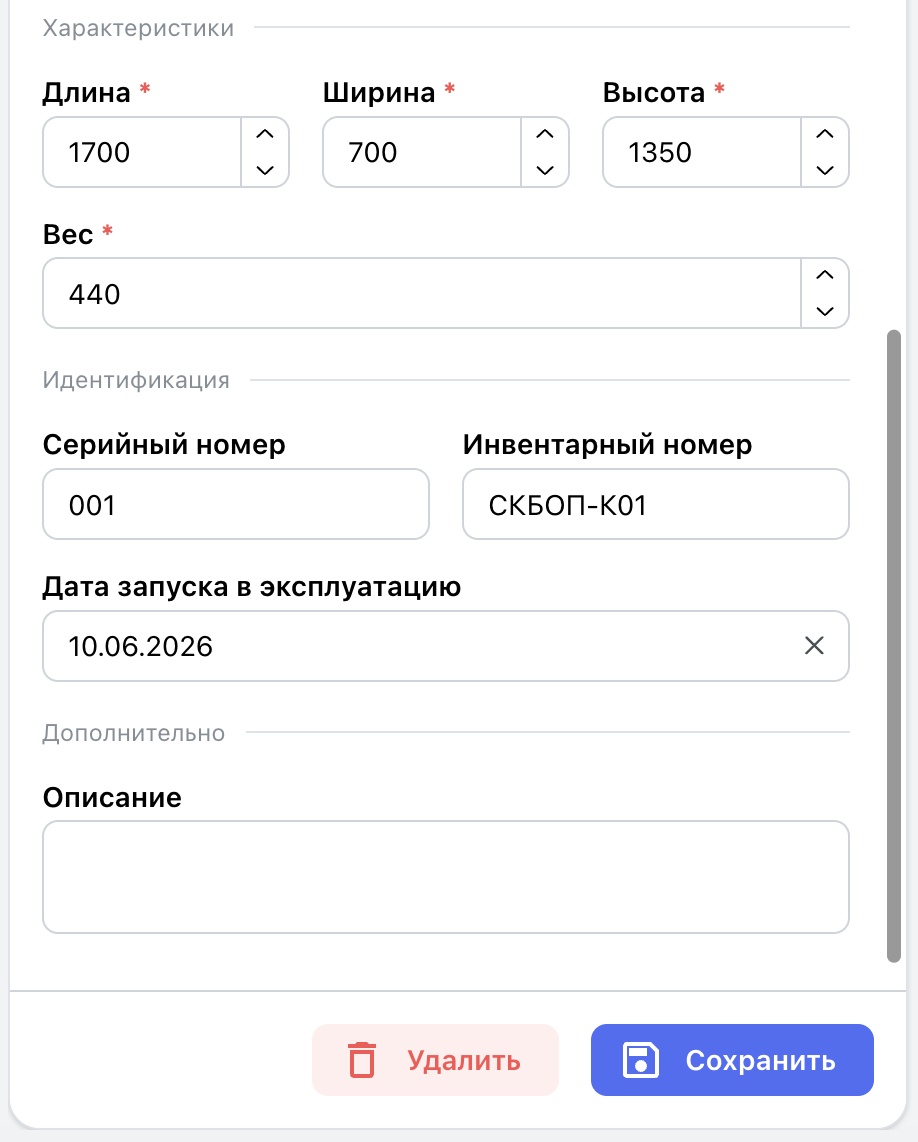
The “Specifications” tab stores overall dimensions in millimeters, weight in kilograms, serial and asset numbers, the commissioning date, and an additional description. This data can be used when planning equipment transport and relocation. Dimensions and weight are reference data that help determine lifting-equipment, vehicle, and loading requirements before equipment is transported or moved.
Equipment QR codes
When an equipment item is created, the system automatically generates three QR codes:
- View equipment — opens the equipment card;
- Create request — starts a service request for this equipment;
- Create inspection round — starts an inspection round for this equipment.
To open the required code, select the QR-code icon in the equipment card and choose the relevant option from QR action.
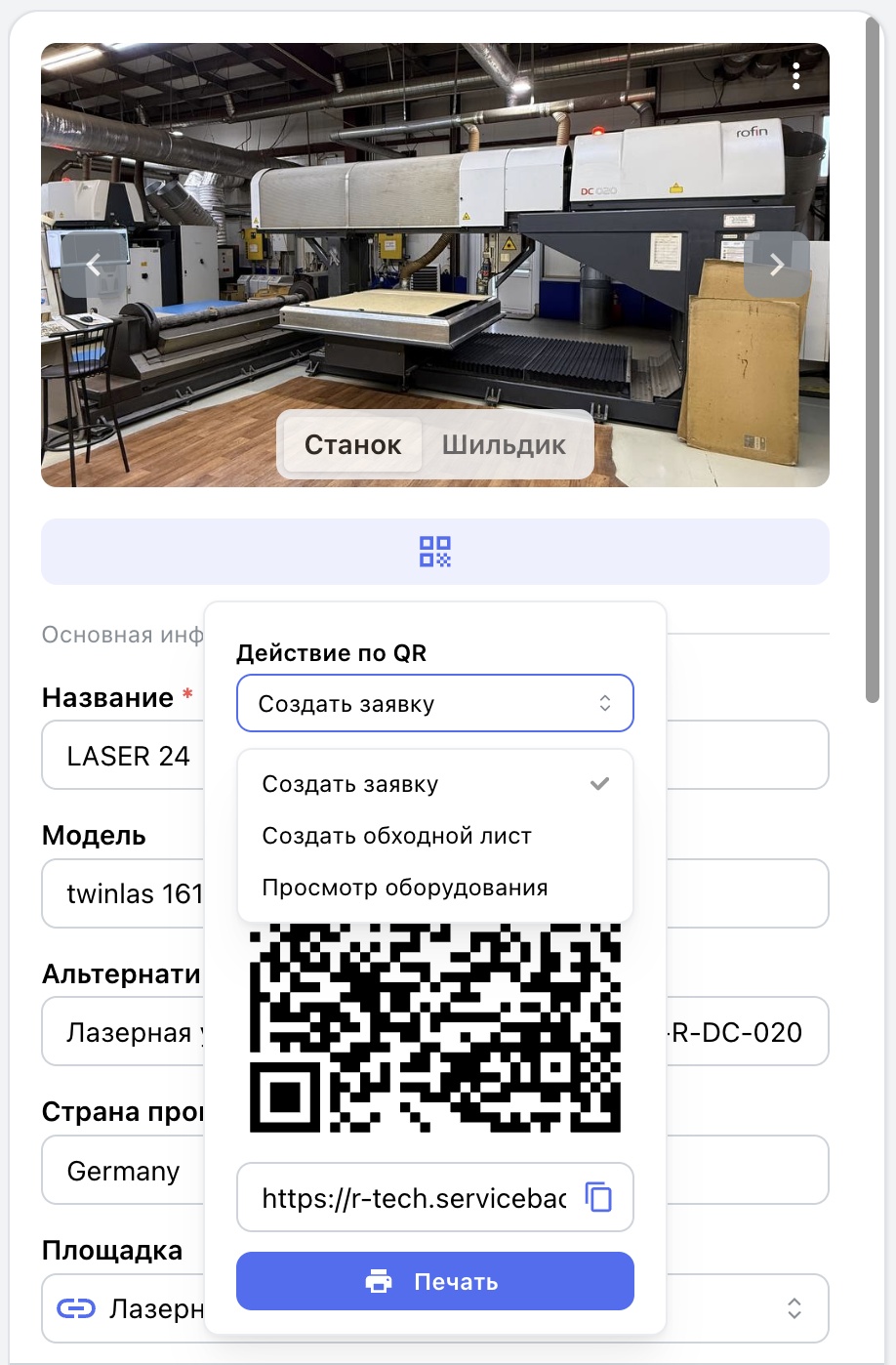
Printing QR codes and labels
Select Print in the QR-code window, then choose the equipment and the type of QR codes to print.
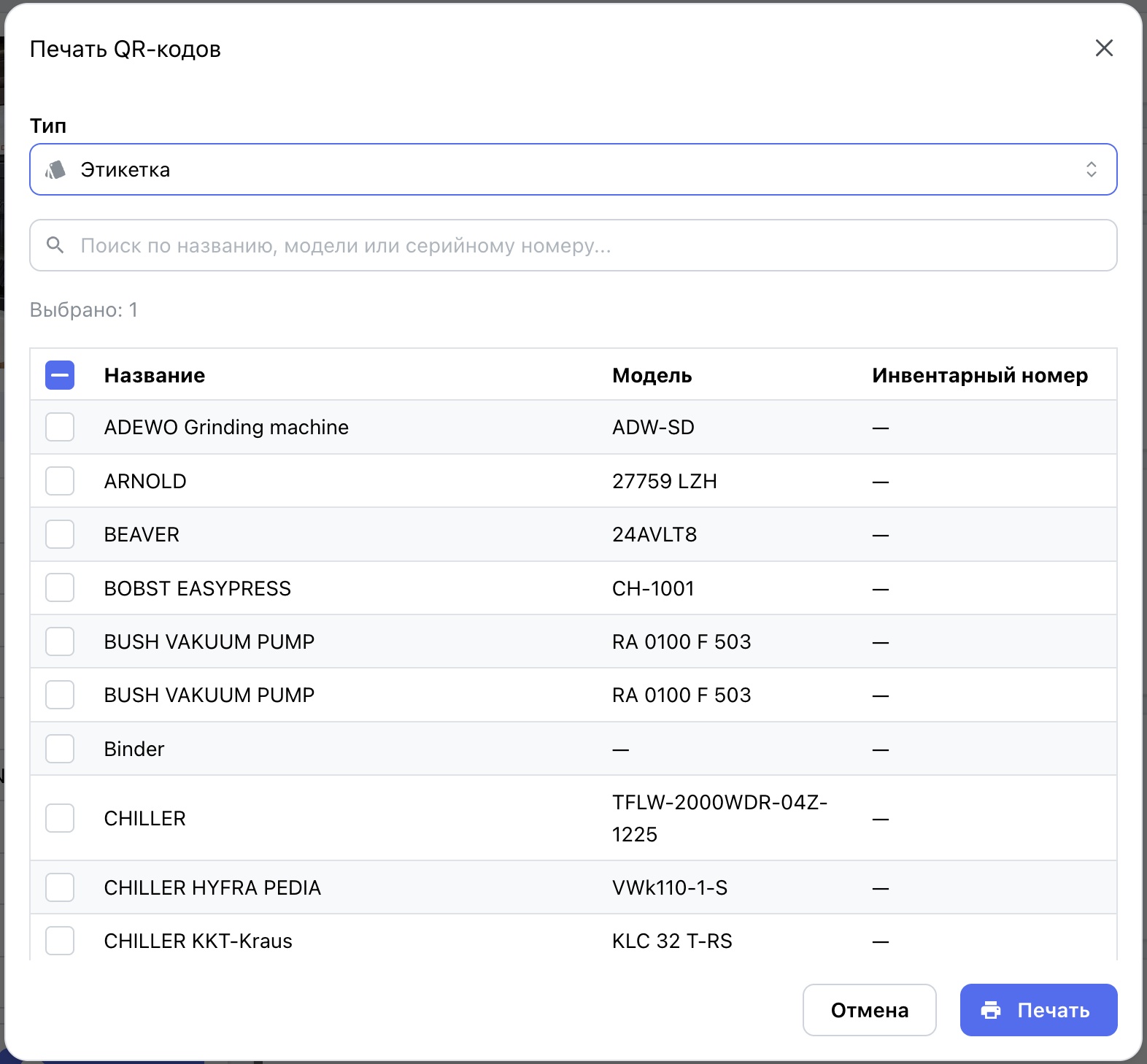
You can also generate a two-code label for one equipment item: one code starts an inspection round and the other opens the equipment card. ServiceBack creates a print-ready A4 PDF.
